Minimus is ending operations. We appreciate the support of our many customers globally and are proud to have served you. Unfortunately, the current business and investment climate has resulted in a situation in which we are unable to continue operations. We acknowledge the effort that transitioning from our images will require and we are committed to providing customers with a stable transition period.
Beginning on Monday 24 August 2026, we will begin a 60 day maintenance period for the product and images. During this period, we will make necessary bug fixes to the overall product, provide commercial support, and continue to maintain images with upstream updates. On Thursday 22 October 2026, we will cease operations and turn off the Minimus registry (reg.mini.dev). Images pulled from the registry prior to 22 October will, of course, continue to function, but no further updated images will be provided.
For Enterprise Edition customers, we are committed to ensuring a fair and orderly conclusion to our commercial relationships. We will reach out to each Enterprise Edition customer individually, beginning on 24 August, to discuss the structured termination of your agreement, including any applicable refunds for the remaining contract period beyond 22 October.
While this is not the outcome that any of us wanted, we hope that this approach provides customers with ample opportunity to smoothly transition.
Add File Bundles to Private Images: More Flexibility and Control
By
Adam Clark
January 27, 2026
While our Image Creator gives you the building blocks to add custom packages and environment variables to base Minimus images, file bundling adds flexibility by supporting additional use cases for further customization and consolidation of specific organizational files that are often bundled during separate build processes. As part of the Minimus Enterprise Edition licensing, file bundling gives organizational teams more ways to offload their existing build processes as part of Minimus pipeline builds.
In this post, we’ll walk through how file bundling works, common use cases, and how to create file bundles inside Minimus Image Creator.
How Teams Use File Bundling With Minimus Images
File bundling is designed for teams that need to include required files in their images without managing separate build logic or one-off Dockerfile changes. It helps standardize what goes into images across teams, environments, and entire fleets, while keeping builds consistent and easy to maintain.
With file bundling, you can:
Automatically upload and bake in organizational certificates or certificates used across an enterprise
Bake in configuration files or scripts that an image or sets of images should automatically all across either a particular image or a set of images
How File Bundling Works
File bundling in Minimus is designed to be simple and repeatable, and can be broken down into a few straightforward steps:
Upload one or more files that are labeled as a bundle and maintained within Minimus.
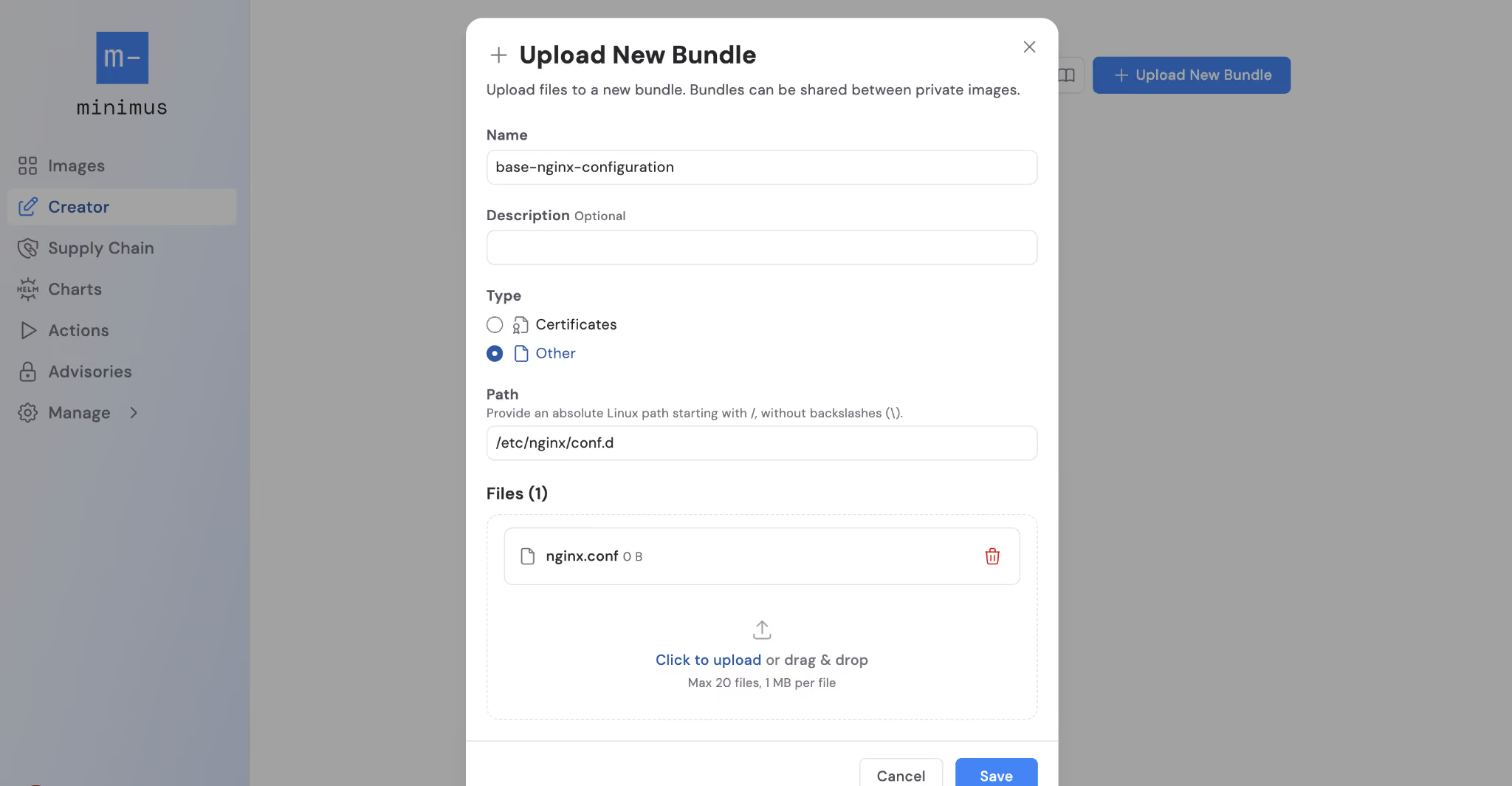
Specify if the file is a certificate or a general file. For each generic file, you have the option to specify the path of where the file will reside on the image.
After a file bundle has been created and uploaded to Minimus, you have the option to reuse the same bundle across any other private image.
New private image builds automatically include the specified bundle that is defined as part of the private image.
How to Create File Bundles in Minimus Image Creator
First, Navigate to Image Creator.
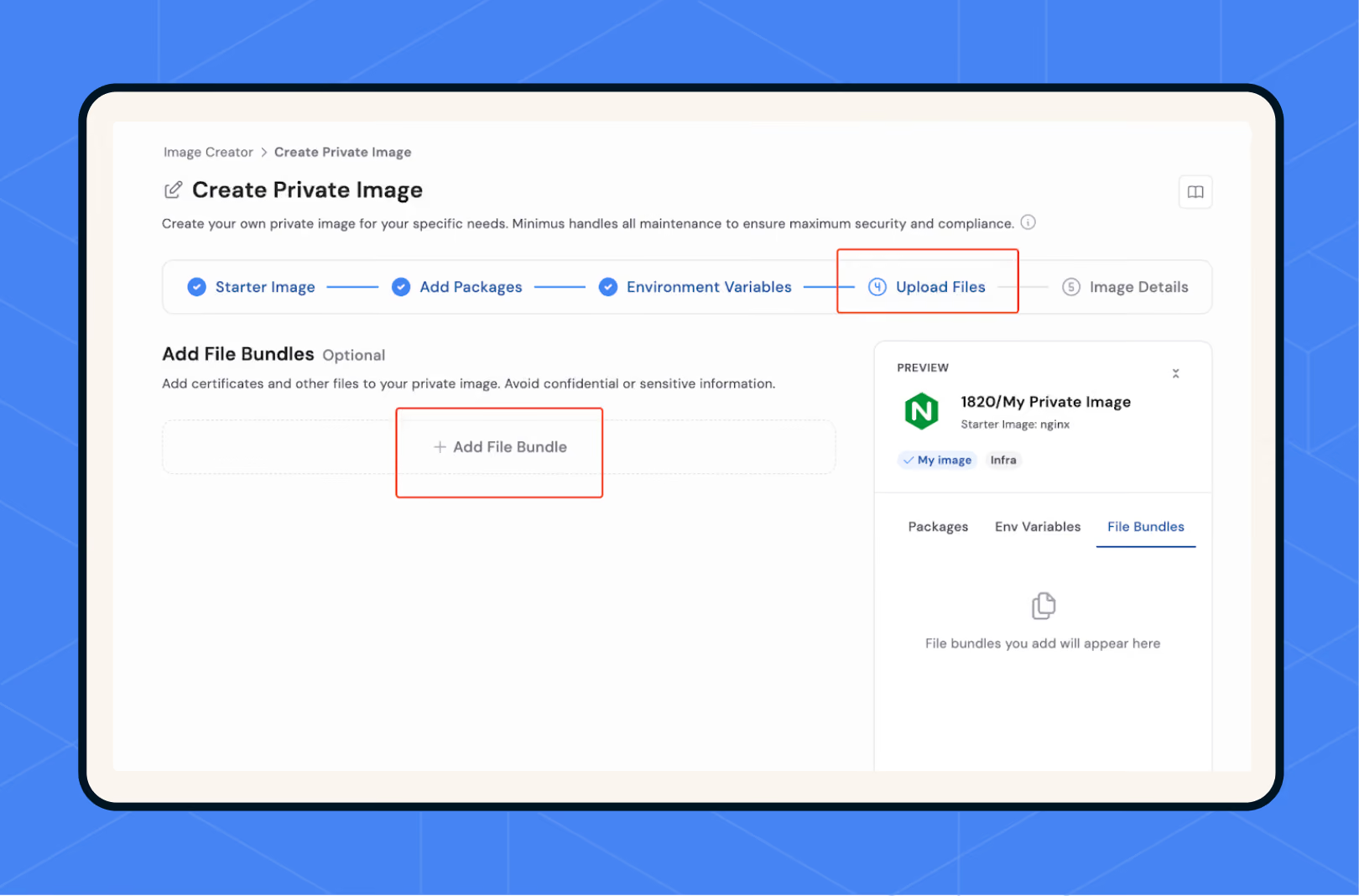
New bundles may be created prior to creating a private image by clicking “Manage Files”, or during the Image Creation Process by Selecting “Add File Bundle”.
How to Add a File Bundle Prior to Creating a Private Image
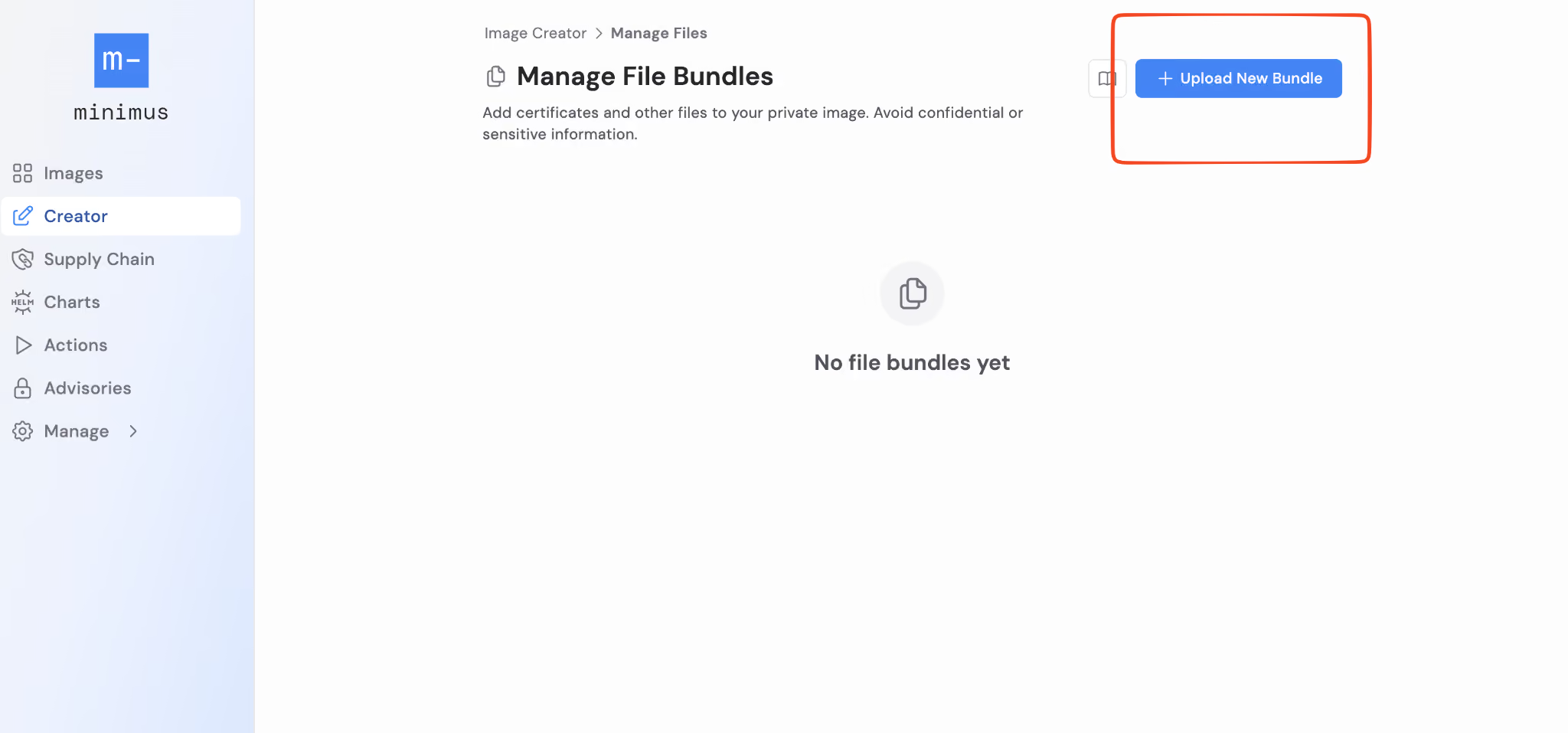
Navigate to Minimus Image Creator and select "Manage Files" to create and manage file bundles.
Select "Upload New Bundle" to add a file bundle.
How to Add a File Bundle During Image Creation Wizard
You can also add file bundles in the private image creation wizard by selecting "Add File Bundle".
How to Upload New File Bundles
After you create a new file bundle, you can upload files.
Certificates:
Select "certificates" to upload certificates to a file bundle.
Other File Types:
Select "Other" to upload other files types to a file bundle.
You can also add an existing bundle during the Image Creation process:
Select from File Repository to add existing bundles during the image creation process.
The selected file bundles will appear in your private image build.
After saving the bundles and launching the build, these file bundles will now automatically be included with each private image build and can be reused with other private images.
The uploaded file bundles will now be included in each private image build.
Get Started With File Bundling in Minimus
Extending the Minimus Image Creator functionality by bundling specific organizational certificate requirements and standard configuration files further allows engineering and application teams to adopt minimal package and CVE images while not compromising existing processes and requirements within existing image builds.


















.svg)
.svg)




.svg)




.svg)